

What is a robots.txt file
Every search engine sends out software called crawlers — Googlebot for Google, Bingbot for Bing, plus dozens of smaller bots — that roam the web reading pages and deciding what belongs in the index. A robots.txt file is a small plain-text file you place on your website that tells those crawlers which parts of your site they may visit and which parts they should leave alone. Think of it as a set of posted visiting hours at your site's front door: most well-behaved visitors read it and follow it.
The key phrase is well-behaved. Robots.txt is a request, not a lock. Legitimate crawlers from Google, Bing, and other search engines honor it reliably. Bad actors — scrapers, spam bots, aggressive AI harvesters — can simply ignore it, and some do. Your robots.txt is also fully public: anyone can type yoursite.com/robots.txt into a browser and read every line. So it is a traffic-management tool, never a security tool. Never use it to hide anything sensitive, and never assume a disallowed page is private.
So what does it actually control? Three things: which sections of your site crawlers should skip (your admin area, internal search results, staging copies, duplicate print pages), which rules apply to which crawlers (you can talk to all bots at once or single out one by name), and where your XML sitemap lives. It does not decide what appears in search results — that is a separate job handled by indexing rules, which you will meet in section 17 — and it does not make anything secret.
On large sites, robots.txt has a real performance job: crawl budget. Google will only crawl a limited number of your pages per day, and every wasted crawl of a faceted filter URL or internal search page is a crawl that did not go to a page that could earn traffic. A tight robots.txt steers the crawler toward the pages that matter. On small sites the file is mostly housekeeping — but the stakes are identical, because one wrong line (Disallow: /) tells Google to stop crawling everything. That is exactly why hand-writing this file is riskier than it looks, and why using a robots.txt generator that builds the syntax for you is the safer move.
User-agent: * Allow: / Sitemap: https://www.example.com/sitemap.xml
That three-line example is the most common robots.txt on the web: it welcomes every crawler to every page and points them at the sitemap. Everything in this guide is built on variations of that skeleton. Once you understand what each line means — and that is sections 3 through 7 — you will be able to read any robots.txt on the internet like a label.

Where robots.txt lives and why location matters
A robots.txt file only works in one place: the root directory of your website, served at https://www.example.com/robots.txt. Not in a subfolder, not named robots.txt.txt because your operating system hid the extension, not uploaded somewhere and linked from the footer. Crawlers check exactly one address — the root — and if the file is anywhere else, it might as well not exist.
Why so strict? Because the file's authority comes from its position. When Googlebot arrives at your site, the first thing it does is request /robots.txt. The paths inside the file (Disallow: /admin/) are interpreted relative to that root. If crawlers accepted robots.txt from any folder, a file in /blog/robots.txt could claim authority over paths it has no business controlling. The single-location rule keeps the chain of authority unambiguous: the root file governs the whole host.
The word host matters. Each hostname needs its own file. www.example.com and example.com are different hosts (use a redirect so only one serves content), and every subdomain — blog.example.com, staging.example.com — is a separate host with its own robots.txt. A robots.txt on your main domain does nothing for your subdomain's crawl rules, which is how staging sites accidentally get indexed: the staging subdomain has no file, so nothing tells Google to stay away.
There are also small technical requirements that trip people up. The file must be plain text served with an HTTP 200 status — if your server returns a 404, crawlers assume no rules exist and crawl everything; if it returns a server error (5xx), Google may stop crawling entirely rather than risk violating rules it cannot read. Keep the file under 500 KB (Google reads at most 500 KiB of it), use UTF-8 encoding, and keep it to one file per host — crawlers will not merge multiple robots files. These sound like details until the day your CDN serves a 404 for the file and your carefully crafted rules silently vanish.
https://www.example.com/robots.txt = the only location that counts https://www.example.com/blog/robots.txt = ignored completely https://staging.example.com/robots.txt = a separate file for a separate host

Robots.txt syntax: the User-agent directive
Every robots.txt is built from groups, and every group starts with a User-agent line. The User-agent names the crawler the following rules apply to. User-agent: * is the wildcard group — it applies to every crawler that does not have its own specific group. User-agent: Googlebot applies only to Google's main crawler. Think of each User-agent block as an addressed letter: the rules underneath belong to whoever the letter is addressed to.
Matching follows one simple rule: the crawler uses the group with the most specific User-agent that matches its name, and ignores the rest. If your file has both User-agent: * and User-agent: Googlebot, then Googlebot follows only the Googlebot group — it does not also follow the * group. Bingbot, with no specific group, falls back to *. This is why the order of groups does not matter but specificity does: the most specific match always wins.
User-agent names are the crawler's product token, matched case-insensitively — googlebot, Googlebot, and GOOGLEBOT all address the same crawler. Common names you will see: Googlebot (Google's main crawler), Googlebot-Image (image search), Bingbot, Slurp (Yahoo), DuckDuckBot, Baiduspider, YandexBot, plus the newer AI crawlers like GPTBot and CCBot that we will address in section 11. A crawler identifies itself with a user-agent string containing its product token; Google publishes the exact strings so you can verify a visitor really is who it claims to be.
One honest limitation to understand early: User-agent targeting is cooperative. A scraper can lie about its name in about two seconds — claiming to be Googlebot while harvesting your content. Legitimate search crawlers can be verified (Google's crawler comes from Google IP addresses, which you can confirm with a reverse DNS lookup), but robots.txt itself performs no verification. So use User-agent groups to manage the crawlers you trust and want to guide — Google, Bing, the AI trainers — and handle the untrustworthy ones with server-level blocking (IP rules, rate limiting, a firewall), not with robots.txt alone.
# One group for everyone User-agent: * Disallow: /private/ # A stricter group for one specific crawler User-agent: BadBot Disallow: /

The Disallow directive
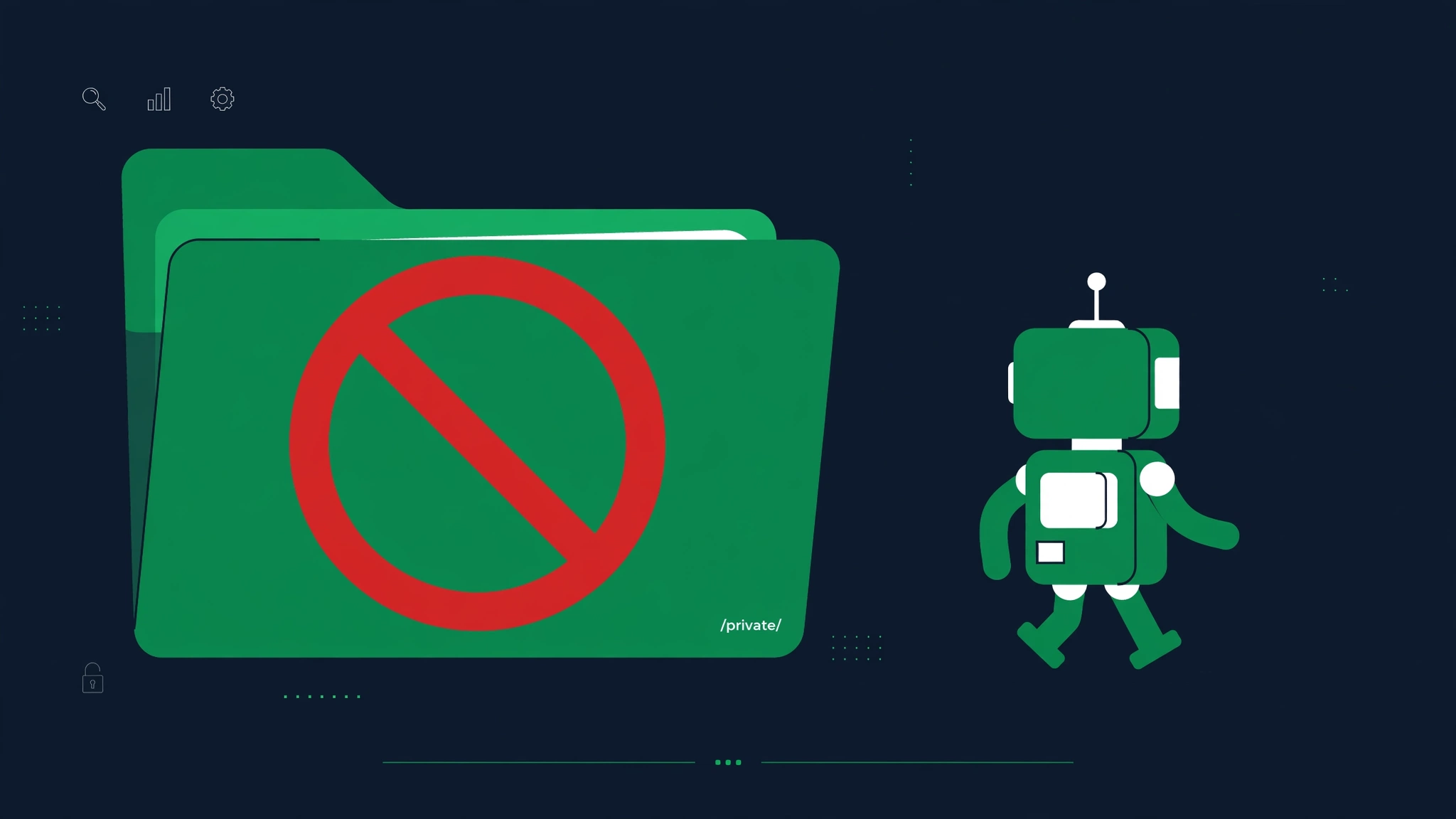
Disallow is the workhorse of robots.txt — the line that actually tells a crawler "do not go here." It takes a path, and any URL starting with that path is off-limits to crawlers in that group. Disallow: /private/ blocks everything under /private/. Disallow: /temp hides the /temp folder. Simple, and dangerously powerful: Disallow: / — a single slash — blocks your entire site. That one line is responsible for more SEO disasters than every other directive combined, which is why section 14 exists.
The matching rule is "starts with," and that has consequences people miss. Disallow: /blog blocks /blog, /blog/how-to, and also /blogroll and /blogging-tips — anything whose path begins with /blog. If you only meant to block the /blog/ folder, you need the trailing slash: Disallow: /blog/. Similarly, Disallow: /admin blocks /administrator too. Always test your patterns against real URLs before deploying, because prefix matching is greedy by design.
A Disallow with nothing after it — Disallow: followed by empty space — means "disallow nothing," in other words allow everything. It looks like a mistake, but it is valid and common: it is how you write "this group has no restrictions." You will see it in generator output when you leave a section unrestricted. And a quick myth to kill: there is no such thing as Disallow with a full URL. Disallow: https://example.com/private/ is invalid — crawlers read it as a path, it matches nothing, and your "block" silently does nothing. Paths only, always starting with a slash.
Common real-world Disallow patterns you will use constantly: internal site search (Disallow: /search/), because search-result pages are thin duplicates; login and account pages (Disallow: /login/, /account/) that have no business in an index; duplicate printer-friendly pages (Disallow: /*?print=); and infinite calendar or filter URLs that trap crawlers in endless loops. Each of these is a crawl-budget leak — pages that cost crawler attention and return zero traffic. A good Disallow list is basically a list of every URL pattern on your site that exists for functionality, not for visitors from search.
User-agent: * Disallow: /admin/ Disallow: /login/ Disallow: /search/ Disallow: /cart/ Disallow: /*?sort= Allow: /
The Allow directive
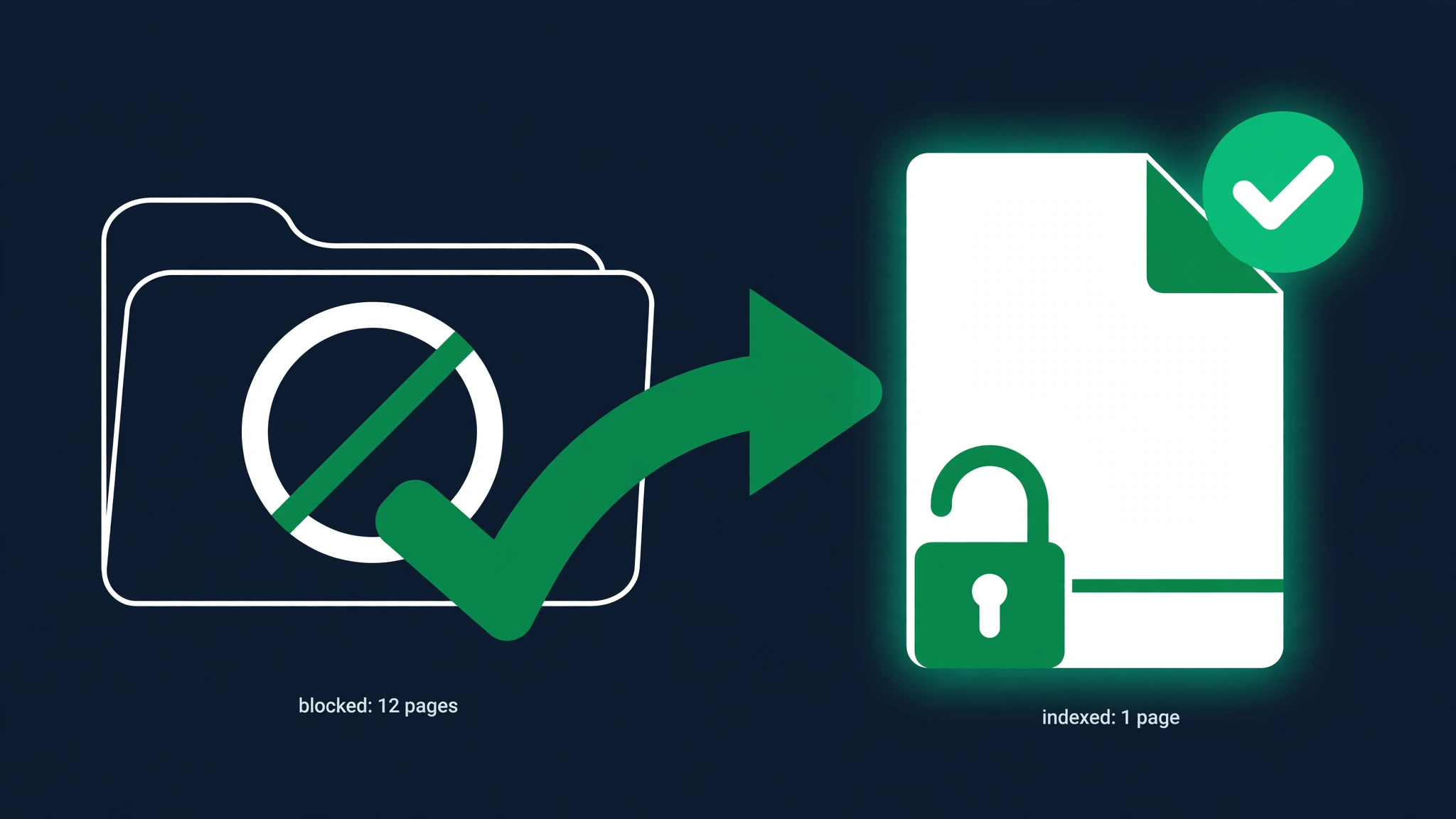
Allow is Disallow's mirror: it explicitly permits crawling of a path. On its own, Allow: / is the default state of the web — everything is crawlable unless disallowed — so a bare Allow line rarely does anything by itself. Its real job is to carve exceptions inside a Disallow. Disallow: /downloads/ blocks the whole folder, but Allow: /downloads/free-guide.pdf re-opens one file inside it. Without Allow, exceptions would be impossible: you would have to choose between blocking a folder and allowing it.
When Allow and Disallow both match a URL, the tie is broken by specificity, not by order: the longest matching path wins. Take Disallow: /blog/ plus Allow: /blog/free/. The URL /blog/free/seo-tips matches both rules, but /blog/free/ is longer, so Allow wins and the page gets crawled. /blog/drafts/secret matches only the Disallow, so it stays blocked. This "longest match wins" rule is the most misunderstood part of robots.txt syntax — people assume the first matching line wins, or that Disallow always beats Allow. It does not. Length decides.
That specificity rule is what makes patterns like this work: Disallow: /*.pdf$ blocks every PDF on the site, then Allow: /whitepapers/*.pdf$ re-allows PDFs in one folder. Or the classic media case: Disallow: /wp-content/uploads/ blocks the whole uploads folder, while Allow: /wp-content/uploads/2026/ re-opens this year's images. Each pair is a scalpel: block broadly, allow precisely.
One caution: Allow is supported by every major crawler (Google, Bing) and was formalized in the current standard, RFC 9309 (2022), which both follow — but it was not in the original 1996 spec, so truly ancient or obscure bots might not understand it. Practically speaking, every crawler you care about honors Allow today. Still, if a path is important, do not rely on Allow alone to protect it: the safest configuration is to simply not Disallow the parent in the first place. Allow is for exceptions, not for architecture. And as with Disallow, keep paths relative and precise — Allow: /public/ opens exactly the paths starting with /public/, nothing more.
User-agent: * Disallow: /downloads/ Allow: /downloads/free-guide.pdf User-agent: * Disallow: /blog/ Allow: /blog/free/
The Sitemap directive
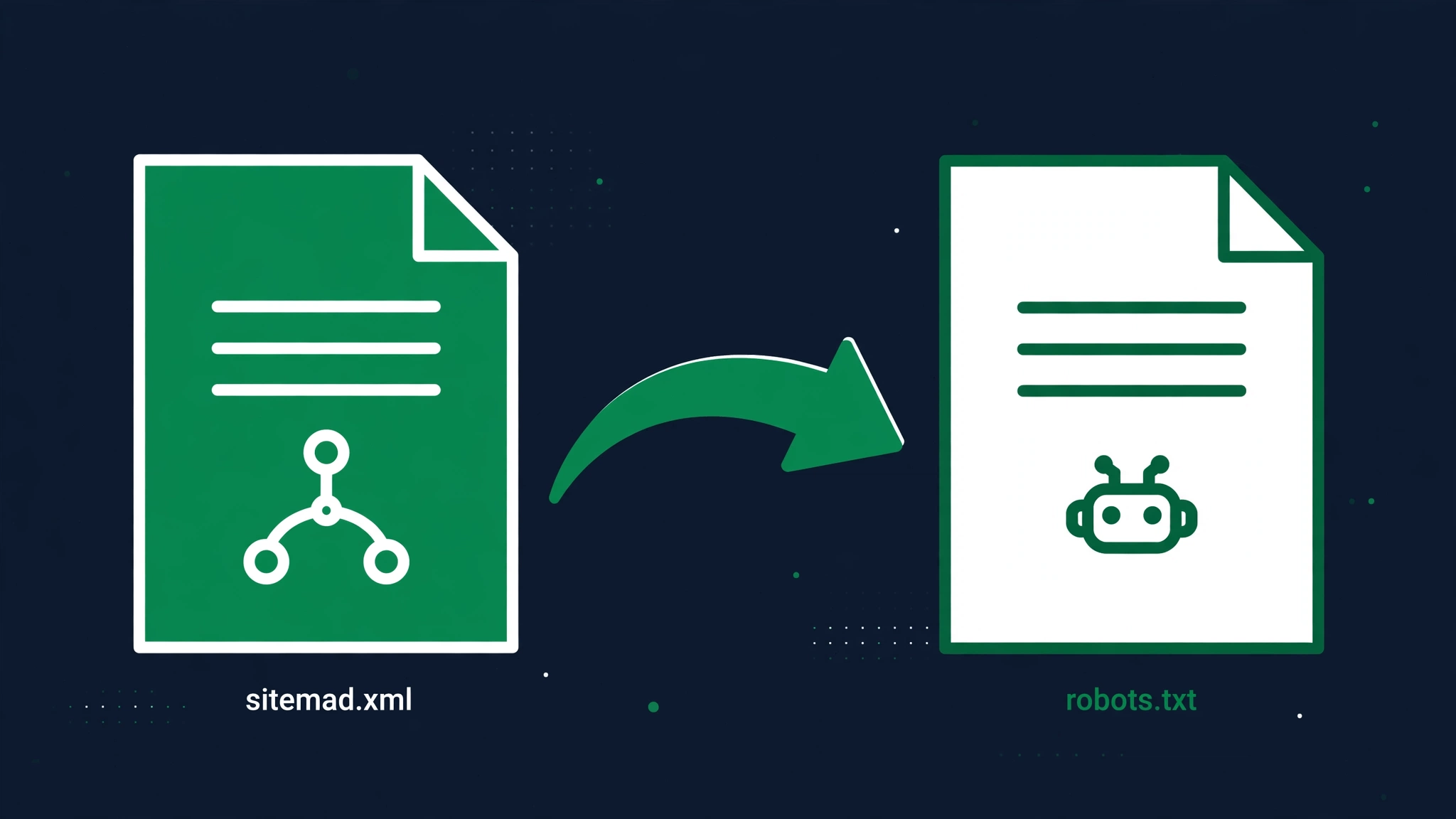
The Sitemap directive tells crawlers where your XML sitemap lives: Sitemap: https://www.example.com/sitemap.xml. Unlike the other directives, it is not tied to a User-agent group — it stands alone, usually at the top or bottom of the file, and it applies to every crawler that reads the file. One line, and every compliant crawler learns where your full URL list is without having to guess or wait for you to submit it somewhere.
The format rules are strict in one way that matters: the sitemap URL must be absolute, including the protocol and host — https://www.example.com/sitemap.xml, not /sitemap.xml. Relative sitemap paths are invalid and get ignored. You can list multiple sitemaps on separate lines, which is exactly what large sites do: one for pages, one for posts, one for images, or a sitemap index file that points to the rest. There is no penalty for listing several, and no requirement to list only one.
Here is the honest part most tutorials skip: the Sitemap line is a discovery hint, not a command. Google treats it the way it treats a submitted sitemap in Search Console — as a suggestion of URLs worth crawling, not a guarantee they will be crawled or indexed. URLs still have to earn their place with content quality and links. So do not expect a sitemap line to rescue thin pages. What it does reliably is speed up discovery: new pages get found in days instead of weeks, especially on sites with weak internal linking.
Practical advice: put your sitemap line in robots.txt and also submit the sitemap in Google Search Console and Bing Webmaster Tools. Slightly redundant — but each channel is a separate discovery path, and Search Console additionally shows you indexing stats the robots.txt line never will (how many submitted URLs are actually indexed, and which ones errored). If you run WordPress with an SEO plugin, your sitemap usually lives at /sitemap_index.xml or /wp-sitemap.xml — verify the URL loads before you declare it in robots.txt, because pointing crawlers at a 404 sitemap is worse than pointing them at nothing. And after any site migration, the sitemap line is one of the first things to update — it is a small line that goes stale quietly.
User-agent: * Allow: / Sitemap: https://www.example.com/sitemap.xml Sitemap: https://www.example.com/sitemap-images.xml
Crawl-delay and Host directives
Two directives show up in old tutorials and in files copied from 2012-era blogs: Crawl-delay and Host. Both are effectively dead for the crawlers that matter, and understanding why will save you from cargo-cult configuration. Crawl-delay: 10 was meant to ask crawlers to wait ten seconds between requests — a politeness setting for fragile servers. Host: example.com was a Yandex-only directive declaring your preferred domain. Neither belongs in a modern file, for different reasons.
Crawl-delay was never part of the official standard (it is not in RFC 9309), and support has collapsed. Google has said plainly that Googlebot ignores Crawl-delay. Bing announced it would stop honoring it as well. Yandex historically supported it for YandexBot, but if your audience is not primarily Russian search traffic, the directive does nothing for you. Worse, it creates a false sense of control: site owners set Crawl-delay: 30 believing they have throttled Google, while Googlebot continues at its own pace. If Googlebot is genuinely overloading your server, the real fix is server-side rate limiting — not a robots.txt line Google does not read.
Host is even simpler: it is obsolete. It was Yandex-specific, Yandex deprecated it years ago, and they now tell webmasters to use 301 redirects for the www-versus-non-www preference instead. No other major crawler ever supported it. If you find Host: in your file, delete it — it is dead weight that confuses anyone reading the file later. The same goes for exotic lines like Request-rate or Visit-time that some ancient generator once emitted: if it is not User-agent, Allow, Disallow, or Sitemap (plus the wildcards covered in section 15), it almost certainly does nothing.
The lesson generalizes: robots.txt is a small language, and small is good. Every line in the file should be a directive a real crawler will act on. Cruft lines do not just waste bytes — they mislead future-you (or your developer) into believing protections exist that do not. When our free robots.txt generator builds your file, it only emits directives that current crawlers honor, which is one more reason to generate rather than copy-paste a decade-old template from a forum.
# Do not use these — ignored by Google and Bing: # Crawl-delay: 10 # Host: example.com # Use only directives crawlers honor: User-agent: * Disallow: /admin/ Allow: /

How to create robots.txt with our free generator
You have now seen every directive that matters, which means you could hand-write your file — but you should not have to. Hand-writing is where the typos happen: a missing slash, a full URL in a Disallow, a group with no rules. Our free robots.txt generator builds a valid file from your choices in about a minute, with no signup and no cost. Here is exactly how to use it.
- 1Open the free robots.txt generator. No account, no email — the tool loads instantly in your browser.
- 2Set the default rule. Choose whether crawlers may access everything (Allow: /) or start from a fully blocked site that you then open selectively. Most sites start with "allow all."
- 3Add your Disallow paths. Type each folder or pattern you want blocked — /wp-admin/, /cart/, /search/ — one per line. The generator validates the syntax as you type, so a malformed path gets flagged before it becomes a live mistake.
- 4Add Allow exceptions if you need them. Blocking /downloads/ but keeping one public file? Add the exception here and the generator pairs it correctly.
- 5Add bot-specific rules (optional). Give Googlebot, Bingbot, or AI crawlers like GPTBot their own groups with stricter or looser rules than the default.
- 6Add your sitemap URL. Paste the absolute URL — the generator checks that it is absolute and reachable.
- 7Generate, review, and download. Read the generated file once (you now know the syntax), then download it and upload it to your site's root as robots.txt.
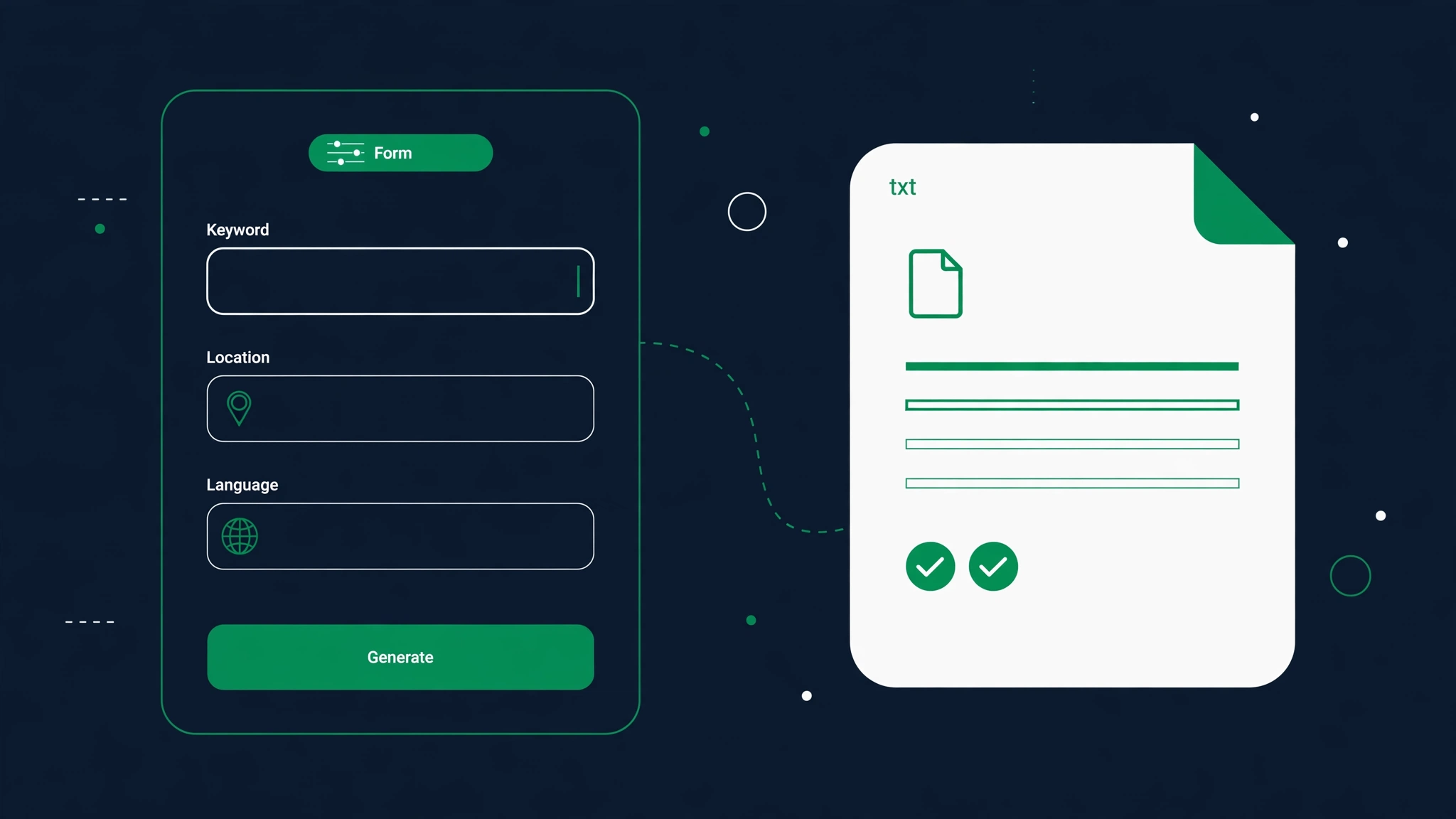
The whole process takes about a minute, and the file it produces follows current RFC 9309 syntax — no dead directives, no full URLs in Disallow lines, no missing trailing slashes. Try it now with the free robots.txt generator and compare its output against the examples in sections 4 and 5 — you will see the same patterns, minus the typo risk.
A few tips for getting the most out of it: generate the file for your production domain, not staging — the tool cannot know which host you are targeting, so double-check the sitemap URL matches the live domain. Regenerate (do not hand-edit) whenever your rules change; keeping one source of truth prevents the slow drift where the live file and your notes disagree. And after uploading, verify the live file with the testing steps in section 16 before you consider the job done. Generation is step one; verification is step two.
The "allow everything" configuration
The most common correct robots.txt on the web is also the shortest: allow everything. If your site has no admin areas exposed, no internal search worth blocking, no staging copy, and no crawl-budget problems, this is your entire file — and it is perfectly fine. Not every site needs a complex robots.txt. In fact, for a small brochure site or a new blog, a minimal file beats a long one copied from a template, because every extra Disallow is a chance to block something you actually wanted crawled.
User-agent: * Allow: / Sitemap: https://www.example.com/sitemap.xml
That file says: every crawler may crawl every page, and here is the sitemap. For a site under a few hundred pages with no login areas, that is the complete, correct configuration. Resist the urge to "harden" it with Disallow lines for paths that do not exist on your site — blocking /cgi-bin/ on a site that has no cgi-bin does nothing except add noise, and blocking paths "just in case" is how people accidentally block real content when the site grows and a folder name collides.
There is one subtlety worth knowing: an empty robots.txt file and a missing robots.txt file (404) both mean "no restrictions" to crawlers. So technically, a small site could skip the file entirely. The reason to keep the allow-all file anyway is the Sitemap line — without a file, you lose that discovery hint — and future-proofing: the day you do need a Disallow, the file and the deployment habit already exist. It also signals to anyone auditing your site (including future-you) that the permissive state is intentional, not an oversight.
When should you move beyond allow-all? Three triggers: your site grows past a few thousand URLs (crawl budget starts to matter), you add functionality with junk URLs (site search, filters, login areas), or you launch a staging environment. Until one of those happens, keep it minimal. The best robots.txt is the shortest one that is still correct — and if that is three lines, that is a win, not a gap.

A solid WordPress robots.txt
WordPress powers a huge share of the web, and it has robots.txt quirks worth knowing. First: if you do not upload a physical robots.txt file, WordPress generates a virtual one automatically at yoursite.com/robots.txt. It contains a basic allow-all plus Disallow lines for /wp-admin/ and /wp-includes/ — sensible defaults. The catch: SEO plugins (Yoast, Rank Math, and others) let you edit this virtual file from the WordPress dashboard, and the moment you upload a physical robots.txt to the server root, the physical file wins and the plugin editor stops having any effect. Know which one is live before you edit.
User-agent: * Disallow: /wp-admin/ Allow: /wp-admin/admin-ajax.php Disallow: /wp-includes/ Disallow: /wp-content/plugins/ Disallow: /readme.html Sitemap: https://www.example.com/sitemap_index.xml
That is a solid WordPress baseline. The lines block the admin area, core includes, and the plugins folder — none of which should ever appear in search results — while explicitly allowing admin-ajax.php, which some themes and plugins need crawlable for front-end functionality (blocking it can break features that depend on AJAX). The readme.html block hides the version-revealing readme file, a small security-hygiene win. The sitemap points at the SEO plugin's sitemap index — verify the exact URL, since Yoast uses /sitemap_index.xml and WordPress core uses /wp-sitemap.xml.
What not to block on WordPress: /wp-content/uploads/. Old guides recommend blocking it to keep attachment pages out of the index, but modern advice is the opposite — your images should be crawlable (they can rank in image search and drive traffic), and attachment pages are better handled with redirects or noindex than with a blanket uploads block. Likewise, do not block /wp-content/themes/ or the CSS and JavaScript inside it: Google needs to render your pages to evaluate them, and blocking resources triggers "blocked resources" warnings in Search Console and can hurt your mobile-friendliness assessment.
Two WordPress-specific traps: first, the "Discourage search engines from indexing this site" checkbox under Settings → Reading. When checked, WordPress serves a virtual robots.txt containing Disallow: / for everyone — and it overrides everything. Developers check it on staging and forget; migrations go live with it still on. Always verify it is unchecked after launch. Second, caching and security plugins sometimes inject their own robots.txt rules (blocking /wp-json/ or REST API paths). Audit the live file after installing such plugins — a plugin's well-meaning default can quietly block API endpoints your mobile app or headless front-end depends on.
Blocking bad bots and scrapers
Not every crawler works for you. AI training bots harvest your content to train models, scrapers republish your articles on spam sites, and aggressive SEO tools hammer your server with thousands of requests. Robots.txt lets you address these bots by name — and unlike the search crawlers, the honest framing here is "this reduces the polite ones," because the rude ones ignore the file. Still, the polite ones include the biggest AI names, so the file is worth writing.
The AI crawlers you can target today: GPTBot (OpenAI's training crawler), Google-Extended (controls whether Google may use your content to train AI models — separate from Googlebot, so blocking it does not affect your search rankings), CCBot (Common Crawl, whose data feeds many AI models), anthropic-ai and ClaudeBot (Anthropic), PerplexityBot, and Bytespider (ByteDance). Each gets its own User-agent group with Disallow: /. Here is the standard AI opt-out block that circulates among publishers:
User-agent: GPTBot Disallow: / User-agent: Google-Extended Disallow: / User-agent: CCBot Disallow: / User-agent: anthropic-ai Disallow: / User-agent: ClaudeBot Disallow: / User-agent: PerplexityBot Disallow: / User-agent: Bytespider Disallow: /
Now the honest caveats, because this topic attracts hype. First, robots.txt blocks future crawling — it cannot un-train a model that already ingested your content. Second, blocking Google-Extended opts you out of AI training use, not out of Google Search; your rankings are untouched. Third, new AI crawlers appear regularly, so an opt-out list is maintenance, not a one-time fix — check quarterly whether new bot names have emerged. Fourth, and most important: malicious scrapers ignore robots.txt entirely. If content theft is costing you real money, robots.txt is the polite notice on top of real defenses: rate limiting, bot management at your CDN or firewall, and legal options for the worst offenders.
There is also a strategic question worth asking before you block every AI bot: do you want to be invisible to AI answers? For publishers whose business is subscriptions, blocking training crawlers is rational self-defense. For businesses that live on visibility, appearing in AI-generated answers (with attribution) is becoming a traffic source of its own — our AI Search Readiness Checker audits whether your pages are structured so AI engines can cite them. The right answer depends on your business model, not on ideology. Either way, make it a deliberate choice in your robots.txt, not an accident of a copied template.

Protecting admin, login, and staging areas
The most legitimate use of Disallow is keeping crawlers out of areas humans should not find via search: admin panels, login pages, customer accounts, internal tools, and staging copies of the site. A customer who Googles your brand should never land on yoursite.com/wp-admin/ or your staging server. Robots.txt handles the crawler side of that — with one critical warning you will read twice in this section: robots.txt is not access control.
The standard blocks are straightforward: Disallow: /wp-admin/ (WordPress), Disallow: /admin/ (generic), Disallow: /login/, Disallow: /account/, Disallow: /checkout/ on stores (crawlers do not buy things; checkout pages in the index are pure embarrassment). These keep junk out of the index and save crawl budget. But — and this is the warning — your robots.txt is public. Every Disallow line is a signpost that says "interesting stuff here" to anyone who reads the file, which is everyone, including attackers. A Disallow line has, more than once, helped someone find an unprotected admin panel. Real protection is authentication: passwords, IP allowlists, VPN-only access. Robots.txt keeps it out of Google; passwords keep it out of the wrong hands.
Staging environments deserve special attention because they cause the most damage. A staging copy at staging.yoursite.com is a separate host, so it needs its own robots.txt with Disallow: / for everyone — or better, HTTP authentication on the whole subdomain, which blocks both crawlers and curious humans. The classic disaster sequence: staging launches without protection, Google indexes the staging copy, the duplicate content confuses rankings, and someone discovers the staging admin panel via the main site's robots.txt. Password-protect staging. Then also add the Disallow. Belt and suspenders.
One more staging trap: developers sometimes copy the staging robots.txt (Disallow: /) to production during deployment. That single copied file is the number-one cause of the horror stories in section 14. Defend against it with process, not memory: keep robots.txt in version control, make the production file part of the deployment checklist, and set up a Search Console alert for crawl anomalies. A two-minute check after every deploy beats a two-week recovery.
User-agent: * Disallow: /wp-admin/ Disallow: /login/ Disallow: /account/ Disallow: /checkout/ Disallow: /internal/

E-commerce: taming faceted URLs and crawl budget
E-commerce sites are where robots.txt earns its keep. A store with 500 products can easily present Google with 500,000 URLs: every combination of color, size, brand, price range, and sort order generates a new address, and most of those combinations are near-duplicate pages nobody will ever search for. Google will happily crawl them all, burning through your crawl budget on filter permutations while new products wait weeks for discovery. Robots.txt is how you close that tap.
The patterns to block are the parameter-driven filters: Disallow: /*?sort= kills every sort-order variant, Disallow: /*?color= blocks color filters, Disallow: /*?price= blocks price ranges. The /*? prefix matches any URL containing that query parameter, regardless of what comes before it. Keep the canonical category and product pages crawlable — those are the pages that rank — and block the permutations. One well-placed parameter block can eliminate hundreds of thousands of junk URLs from the crawl queue overnight.
But do not block blindly. Some filtered pages earn real traffic: a color-filtered category page might rank for a "red shoes" style query if it has unique content and links. The rule is: block parameters that only reorder or narrow without adding search value (sort orders, session IDs, tracking parameters like ?utm_source=), and keep parameters that create genuinely distinct, linked, valuable landing pages. When in doubt, check Search Console's indexing report for which parameter URLs Google is actually crawling — then block the ones with impressions near zero. And pair robots.txt with canonical tags pointing filter URLs at the canonical category page, so any crawler that reaches them anyway gets the consolidation signal.
A note on what changed: Google retired its URL Parameters tool in Search Console, which used to let you tell Google how to handle each parameter. That setting is gone, so robots.txt patterns and canonical tags are now your main levers for parameter control. For very large catalogs, also consider crawl-budget hygiene beyond robots.txt: paginate sensibly, do not orphan new products three clicks deep, and keep your sitemap limited to canonical product and category URLs — never filter permutations. A tight robots.txt plus a clean sitemap is the entire crawl-budget strategy for most stores.
User-agent: * Disallow: /*?sort= Disallow: /*?sessionid= Disallow: /*?utm_source= Disallow: /cart/ Disallow: /checkout/ Allow: /

The Disallow: / horror story
Every SEO consultant has a version of this story. A developer pushes the staging configuration to production. A site migration flips a checkbox. Someone "temporarily" blocks the whole site during a redesign and forgets to unblock it. The file goes live containing two innocent-looking lines — User-agent: * and Disallow: / — and Google obediently stops crawling the entire website. Within days, new content stops appearing in search. Over the following weeks, pages begin dropping from the index. Organic traffic falls off a cliff, and the business discovers the cause only after the damage is done.
Why is it so devastating? Because Disallow: / does not just hide new pages — it tells Google's crawler to stop visiting, and pages Google cannot re-crawl gradually lose their freshness signals and fall out of the index. Recovery is not instant either: after you fix the file, Google has to re-crawl your whole site before rankings return, and for a large site that re-crawl takes weeks. A five-second mistake routinely costs a month of traffic. That is the asymmetry that makes robots.txt the most dangerous small file in SEO.
The other classic killers, ranked by how often they strike: blocking CSS and JavaScript (Google needs to render your pages; blocked resources trigger warnings and can hurt mobile rankings — never Disallow your theme's asset folders); prefix-matching accidents (Disallow: /sale blocking /sales-team and every URL starting with /sale); copying a template with Disallow lines for paths your site actually uses for content; and the WordPress "Discourage search engines" checkbox surviving a staging-to-production migration, which serves Disallow: / to every crawler. Our robots.txt SEO mistakes guide walks through each of these with fixes.
Prevention is a process, not a hope. Keep robots.txt in version control so every change is reviewed. Add it to your deployment checklist: after every deploy, fetch yoursite.com/robots.txt and confirm it says what you think it says. In Search Console, watch the robots.txt report under Settings — it shows the file Google actually fetched and flags errors. And consider a simple monitor that alerts you if the file's content changes unexpectedly. The file is small enough to check in ten seconds; the recovery from not checking takes weeks. Build the habit.
# THE MISTAKE — never deploy this to production: User-agent: * Disallow: / # What production should say: User-agent: * Allow: /

Wildcards and pattern matching
So far the examples used plain paths, but robots.txt supports two pattern characters that make rules far more expressive: * matches any sequence of characters (including an empty one), and $ marks the end of the URL. Both are part of the modern standard (RFC 9309) and supported by Google, Bing, and other major crawlers. Master these two and you can write one line where a beginner would write fifty.
The * wildcard shines for parameters and file types. Disallow: /*? blocks every URL containing a question mark — the nuclear option against parameter URLs. Disallow: /*.pdf$ blocks every PDF on the site (the $ ensures it only matches URLs ending in .pdf, so /pdf-guide/ stays crawlable). Disallow: /images/*.gif$ blocks GIFs in the images folder only. Each pattern is precise because you control both the prefix and the ending.
The $ anchor deserves emphasis because it is the difference between a scalpel and a sledgehammer. Without it, Disallow: /*.pdf would also block /pdf-converter/ and /my.pdfs/page — anything containing ".pdf" anywhere. With the $, only URLs ending in .pdf match. Whenever you write a wildcard rule, ask: "what else could this match?" and add $ where the answer includes things you want crawled. The most common wildcard bug in the wild is a missing $ that quietly blocks an entire content section.
A few more patterns you will actually use: Disallow: /*?sort=*&dir= blocks a specific parameter combination; Allow: /*.js$ combined with a broad Disallow re-opens JavaScript files crawlers need for rendering; Disallow: /*/print/ blocks print versions at any folder depth. And remember the longest-match rule from section 5 still applies: when a wildcard Disallow and a specific Allow both match, the longer pattern wins. Test every pattern against a list of real URLs from your site — including the ones you want crawled — before it goes live. Pattern confidence comes from testing, not from staring at the syntax.
User-agent: * Disallow: /*? Disallow: /*.pdf$ Allow: /public/*.pdf$ Disallow: /*/print/

How to test your robots.txt
Writing the file is half the job; verifying it is the other half. A robots.txt that looks right and behaves wrong is worse than no file at all, because it fails silently. Here is the testing routine, from quickest to most thorough. Start with the basics: open yoursite.com/robots.txt in a browser and confirm it loads with HTTP 200, that the content is exactly what you deployed (not a cached or staging version), and that it is served as plain text. Then check the obvious: no Disallow: / on production, no full URLs in Disallow lines, sitemap URL absolute and loading.
Next, check what Google actually sees. In Google Search Console, go to Settings and open the robots.txt report: it shows the file Google fetched, when it fetched it, and whether it hit errors. If Google's copy differs from yours, you have a caching or deployment problem to fix first. For page-level verification, use URL Inspection on a few key URLs — it tells you whether each URL is crawlable or blocked and why. Note that Google retired the old standalone robots.txt Tester tool; the Settings report plus URL Inspection is the current workflow.
Then test your patterns against real URLs. Take ten URLs you want crawled and ten you want blocked, and check each against your rules — using the longest-match and prefix rules from this guide, or with a third-party robots.txt tester that simulates the matching. Pay special attention to the edge cases: URLs that start with a blocked prefix but should not be blocked (/blogroll vs /blog/), wildcard rules missing their $ anchor, and Allow exceptions inside broad Disallows. This ten-and-ten check catches the vast majority of real-world mistakes.
Finally, make testing a habit, not an event. Re-verify after every deployment, every plugin install, and every migration — those are the moments files change unexpectedly. If you want the full catalog of what to watch for, our robots.txt SEO mistakes guide covers the most damaging errors with fixes. And when you need to rebuild the file from scratch after finding problems, the free robots.txt generator produces a clean, valid file you can verify in minutes.
Robots.txt vs meta robots vs noindex
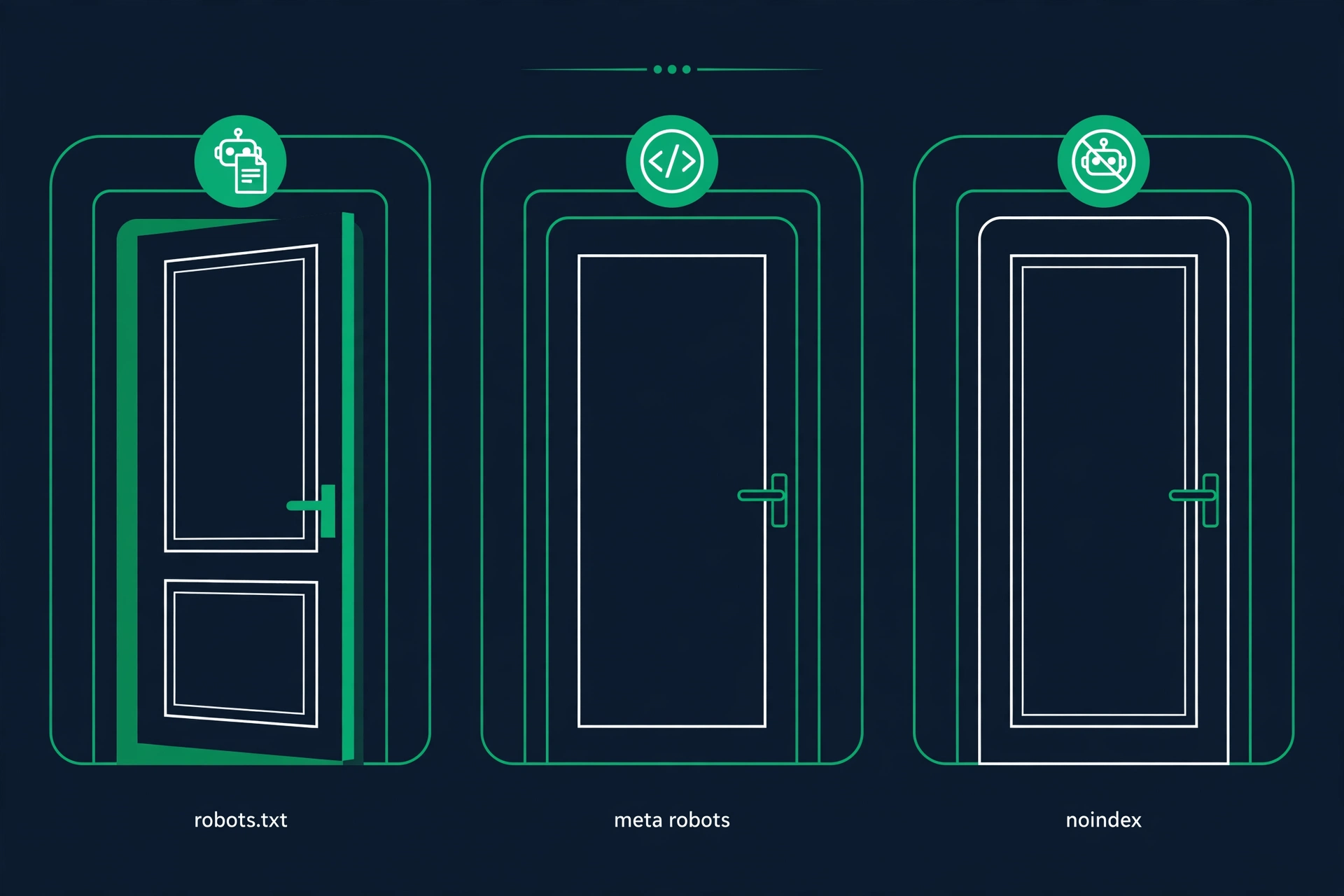
Three mechanisms control crawling and indexing, and mixing them up causes real damage. Here is the clean separation. Robots.txt controls crawling: whether crawlers may visit a URL. It says nothing about the index. Meta robots (the meta tag in your HTML head) and the X-Robots-Tag HTTP header control indexing: whether a crawled page may appear in search results. Noindex is a value you put in those tags — "crawl this page, but do not index it." Different jobs, different tools.
The critical interaction: a page blocked by robots.txt cannot be crawled, which means Google never sees its noindex tag. The result is the worst of both worlds — the page stays out of Google's reach but can still appear in search results as a URL-only listing (title missing, snippet reading "no information is available for this page"), because Google knows the URL exists from links pointing to it. This is the most common robots.txt mistake among people who half-remember the rules: they Disallow a page and noindex it, and the Disallow cancels the noindex. If you want a page out of the index, use noindex and do NOT block it in robots.txt. Let the crawler visit, read the noindex, and drop the page.
So when do you use each? Use robots.txt Disallow for crawl management: saving crawl budget on filters, search pages, and admin areas — utility URLs you do not care about indexing. Use meta robots noindex for index management: thin pages, thank-you pages, internal content you want crawled (so Google sees the noindex) but never shown in results. Use X-Robots-Tag — the HTTP-header version — for non-HTML files like PDFs and images, which have no head section for a meta tag. And use meta robots values like nofollow or noarchive for the finer controls (do not follow the page's links; do not show a cached copy).
One more distinction that confuses people: "disallow" is not "block from Google." A disallowed page can still be indexed (URL-only, as above), still accumulates no link value for you, and still appears if someone links to it. If your goal is "this page must not appear in search," robots.txt alone never achieves it — that is noindex's job (or password protection, or deletion with a 404 or 410). Think of it as doors versus guest lists: robots.txt locks the door to the crawler, meta robots tells the bouncer who is on the list. Decide which problem you actually have before picking the tool.
<!-- In the HTML head: crawled, but not indexed --> <meta name="robots" content="noindex, follow"> # In robots.txt: never combine with the above # (blocking prevents Google from seeing the noindex) User-agent: * Disallow: /thank-you/
Your next step: generate it right
You now know more about robots.txt than most site owners ever will: what the file is, where it lives, how every directive works, how to handle WordPress and e-commerce, how to block AI crawlers honestly, which mistakes destroy rankings, and how to test that your file behaves. The thirteen questions below cover the quick answers people ask most — the short version of everything above, plus extras like case sensitivity and subdomains.
The single most important takeaway: robots.txt is simple enough to understand fully and dangerous enough to deserve respect. Generate it with a tool instead of hand-writing it, verify it after every deployment, and revisit it whenever your site changes shape — new sections, new parameters, new staging environments. A file you set and forget is a file that eventually surprises you.
Ready to build yours? The free robots.txt generator creates a valid, current-standard file from your answers in about a minute — no signup, no cost, no syntax to memorize. Generate it, upload it to your root, run the tests from section 16, and you are done. And if you are auditing the rest of your technical SEO while you are at it, run through the SEO checklist to catch what robots.txt does not cover.